Request Interface
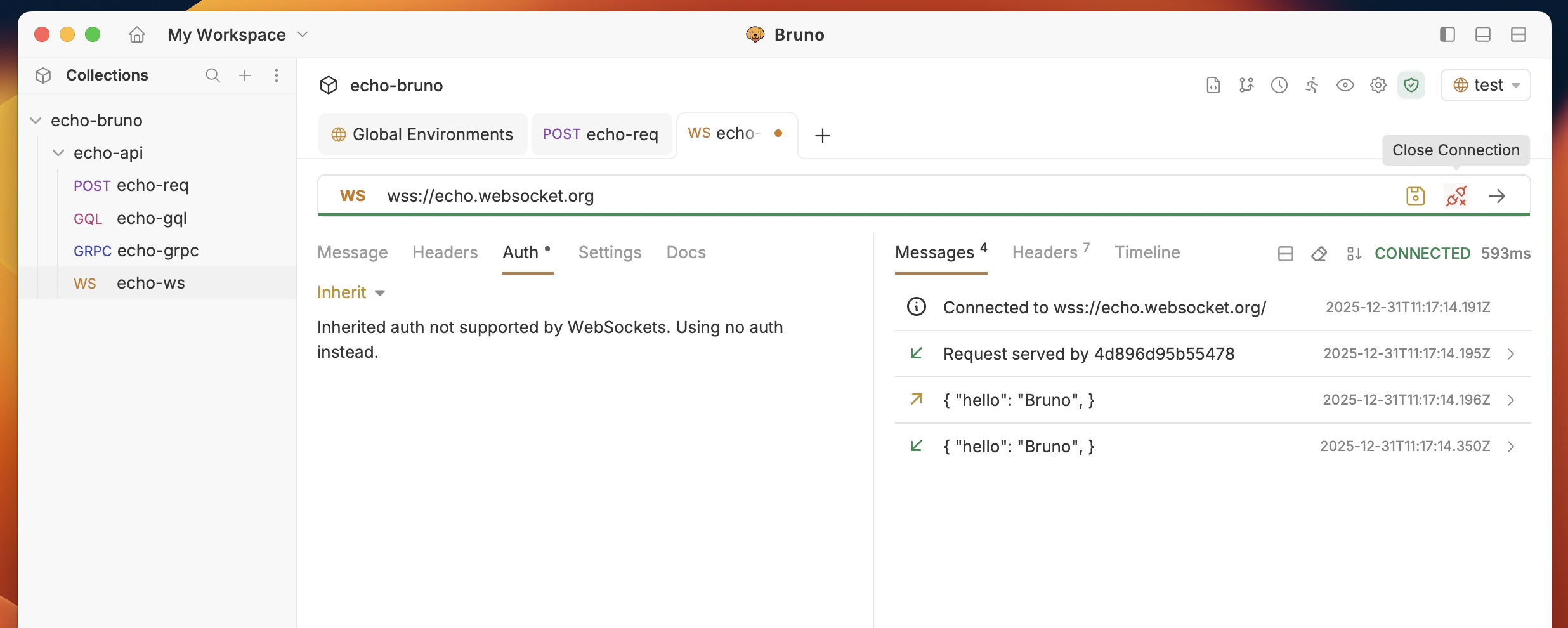
Connection Status
- Disconnected: Initial state, ready to connect
- Connecting: Establishing connection to server
- Connected: Successfully connected and ready to send messages
- Disconnected: Connection lost or manually closed
Message Composition
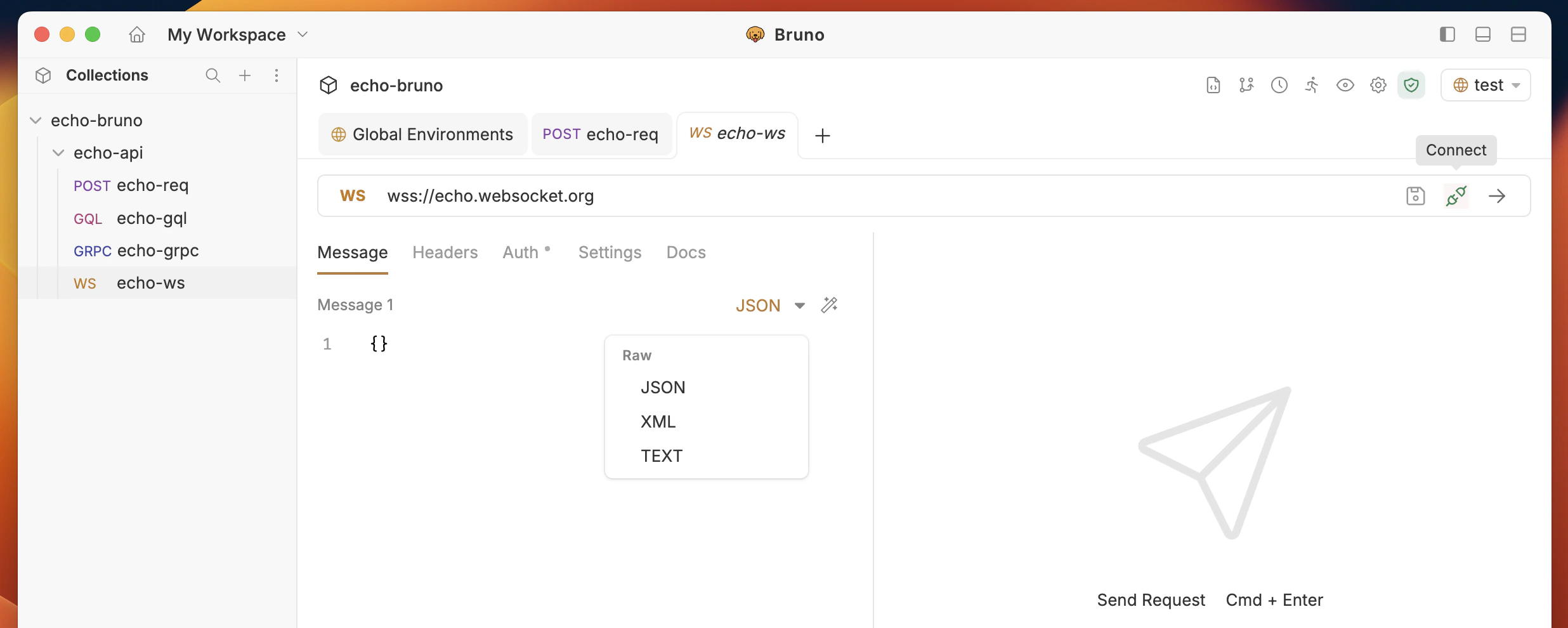
Bruno organizes WebSocket messages as a list of collapsible accordion panels, so you can save multiple reusable messages alongside a single request and send any one of them on demand. Each message panel includes:- Message name: Double-click the label to rename a message inline
- Message type: Switch between Text, JSON, and XML per message
- Message editor: Compose the payload with syntax highlighting
- Send button (per message): Send that specific message; auto-connects if the WebSocket is not yet connected
- Delete button: Remove the message (available when the request has more than one message)
- Add Message (
+): Append a new message; new messages default to JSON and auto-expand for editing - Prettify All (wand icon): Format every JSON and XML message in the request
Message History
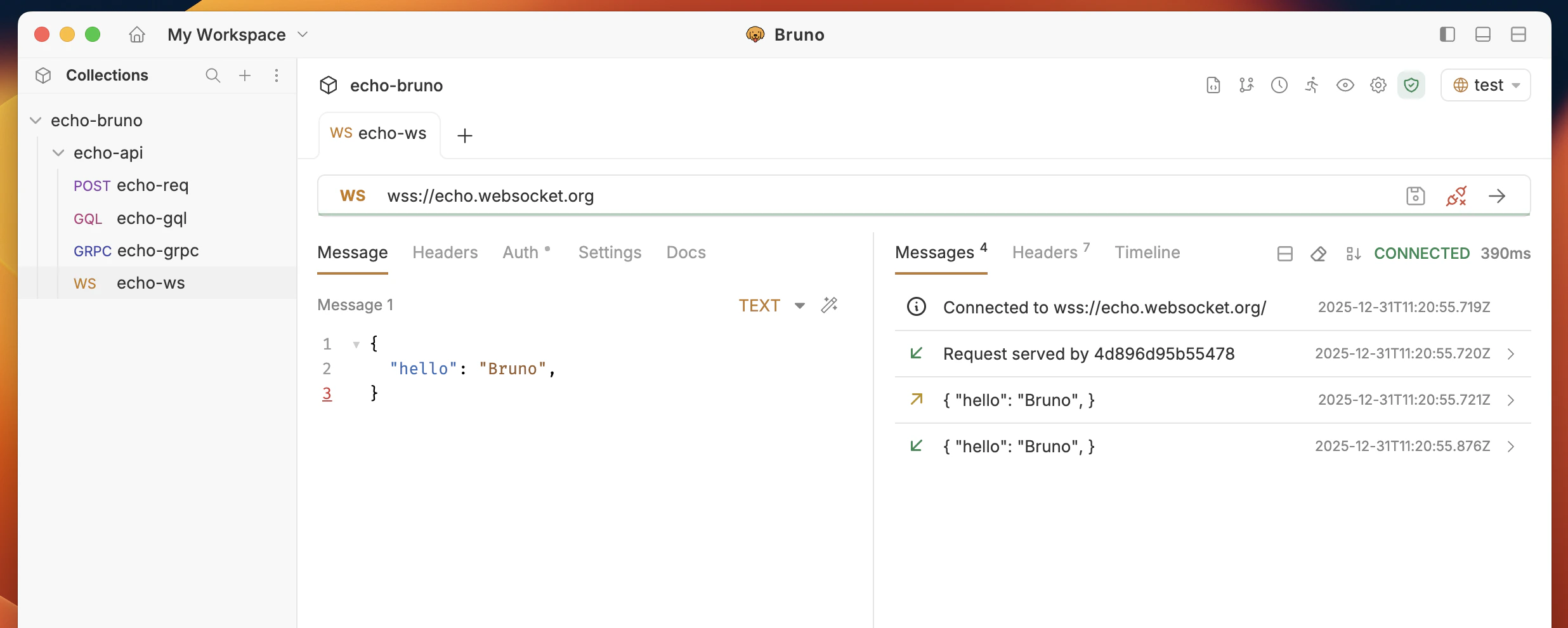
- Sent Messages: All messages you’ve sent (marked with →)
- Received Messages: All messages received from server (marked with ←)
- Timestamps: When each message was sent/received
- Message Sorting: Toggle between newest/oldest first
Connection Management
Establishing Connection
- Click the “Connect” button to establish the WebSocket connection
- Monitor connection status in the status indicator
- View connection logs for detailed connection information
Sending Messages
- Compose your message in the message editor
- Select the message type (Text, JSON, XML) for that message
- Send the message in one of two ways:
- Click the per-message Send button on a specific message panel to send that message
- Click the global Send button at the top of the request to send the currently selected message
- View sent message in the message history
Working With Multiple Messages
You can store multiple messages in a single WebSocket request, which is useful for testing different payload variants without creating separate requests.- Add a message: Click the
+icon in the body tab toolbar (or the Add message link if the request has none). New messages default to JSON. - Rename a message: Double-click the message name in the accordion header and press Enter to save.
- Switch types per message: Use the type selector in each message panel to change between Text, JSON, and XML independently.
- Select the active message: Click any message panel to select it; the selected message is what the global Send button transmits.
- Prettify all: Click the wand icon in the body tab toolbar to format every JSON and XML message at once.
- Delete a message: Hover the message header and click the trash icon. The delete control is hidden when only one message exists.
.bru and .yml collection formats, so saved requests round-trip without losing message names, types, or selection state.
Receiving Messages
- Monitor the message history for incoming messages
- View message details including timestamp and content
- Use test scripts to validate received messages
Closing Connection
- Click “Disconnect” to close the WebSocket connection
- Connection status will update to “Disconnected”
- Message history is preserved for review